Tempo — Changing the System Safely
Changing Your Site Safely: The Preview-and-Approve Loop
How a change to your live site actually happens — describe, preview, approve, publish — and why the preview step is the one you never skip.
Two loops, and you will mostly use the first
The panel loop — new service page, updated copy, a photo gallery
Most changes are yours, and the loop is short:
- Open the section that owns it — Services, Locations, Blog, Gallery, Contact Form.
- Make the change in the form, where you can read it before committing.
- Save.
- Check the page once your site has updated. If it reads wrong, go back into the same screen and correct it.
The important property here: it is reversible in the place you made it. There is no request to raise and nobody to wait for. A price you mistyped is a price you retype.
The provider loop — changes no panel screen covers
Some changes are structural: a site-wide promotional banner, a menu reordering, a new kind of page that does not exist yet. Your provider does this — see *When you want more than the system does* in the first lesson, and the two gaps named there.
That loop is longer, deliberately:
- Describe what you want.
- A change is prepared. Not applied to your live site — prepared, as a proposed change.
- You get a preview. A working copy of your site *with* the change, at its own link. Your live site is untouched.
- You approve. Only then does it go live.
The important property: steps 1–3 cannot break your live site. Someone can ask for something wrong, get something wrong, look at it, and discard it, and no customer ever saw anything.
Why the second loop is slower on purpose. A panel change edits content inside a shape that already works. A structural change edits the shape. The preview step is what makes that safe, and it is the step you never skip.
Why the preview is non-negotiable
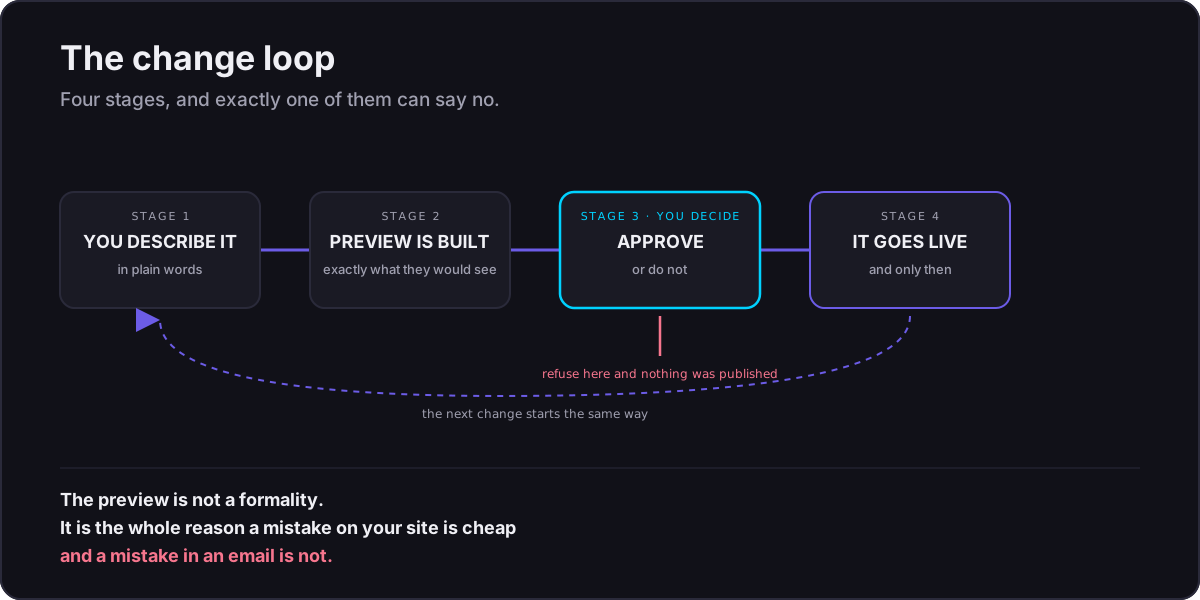
It is tempting, on a small change, to skip looking. Do not.
Small changes are where mistakes hide. A price updated on one page but not the other. A phone number with a transposed digit. A service removed from a menu but still linked from three pages. None of these look wrong in a description of the change. They look wrong on the page.
Open the preview. Click the thing you changed. Click one thing you did not change. That second click catches the surprises.
Describing a change well
The quality of what you get back tracks the quality of what you asked for. Compare:
Weak: "Add a gutter page."
Strong:
> Add a new service page for gutter cleaning at /services/gutter-cleaning.
>
> Use the same layout as the existing pressure washing service page — same section order, same styling, same call-to-action component.
>
> Content: [paste the copy you wrote earlier]
>
> Add it to the services navigation menu, positioned after pressure washing.
>
> Add a link to it from the pressure washing page's "related services" section.
>
> Don't change any other page.
Four things make the second version work: it says where, it says what to copy from, it supplies the actual content, and it says what not to touch. That last one prevents a helpful tidy-up you did not ask for.
What to check in a preview
A short standing checklist:
- The new or changed thing looks right.
- On a phone. Most of your visitors are on one. Resize the window or open the preview on your phone.
- Navigation still works — the new page is reachable, and nothing that worked before is broken.
- Any price, phone number, or address on the page is correct. (Trust list, again.)
- One unrelated page still looks fine.
When something is wrong
Say what is wrong and ask for a fix. You do not need to know why it happened or how to fix it. "The heading is overlapping the photo on my phone" is a complete and useful bug report.
The loop just runs again: describe, prepare, preview, approve. Nothing is live until you say so, so there is no penalty for iterating.
What to send back rather than fix
Some requests should not be handled as a routine change:
- Anything touching payments or checkout.
- Anything that would collect new personal information from customers.
- Anything that changes who can log in or what they can see.
- Deleting content in bulk.
These are not forbidden — they are simply not the same class of change as new page copy. Raise them with your provider contact rather than iterating on them yourself. The dividing line is reversibility: a page you can change back in five minutes is routine. A payment flow, or a form now collecting data you did not previously hold, is not.
The habit worth building
Batch your site changes. Because each change carries a small fixed cost — describe, preview, check — five changes done in one sitting cost far less than five changes done on five different days.
Keep a running list of small site fixes as you notice them. Once a fortnight, sit down and run the loop through all of them at once.